Add Potniq to Claude
Potniq works out when you need to leave for the transit between your bookings. You use it through your own AI agent over MCP. It does not time airports or security; it uses the buffers you set.
This guide covers claude.ai, the Claude desktop app and the Claude mobile apps.
Add Potniq on claude.ai or in the desktop app. We have not checked Potniq on a phone.
Not yet verified by Potniq
We have not yet recorded a full end-to-end run on Claude. These steps follow Anthropic's documentation, checked 30 October 2026: Claude help: custom connectors using remote MCP.
Setting it up opens Potniq in your browser. You sign in and approve access yourself; your agent cannot do it for you.
Steps
01
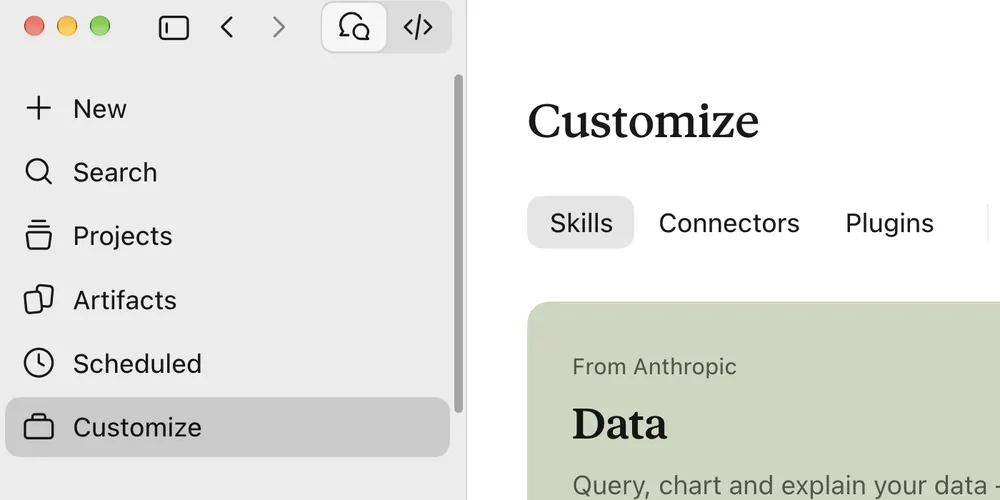
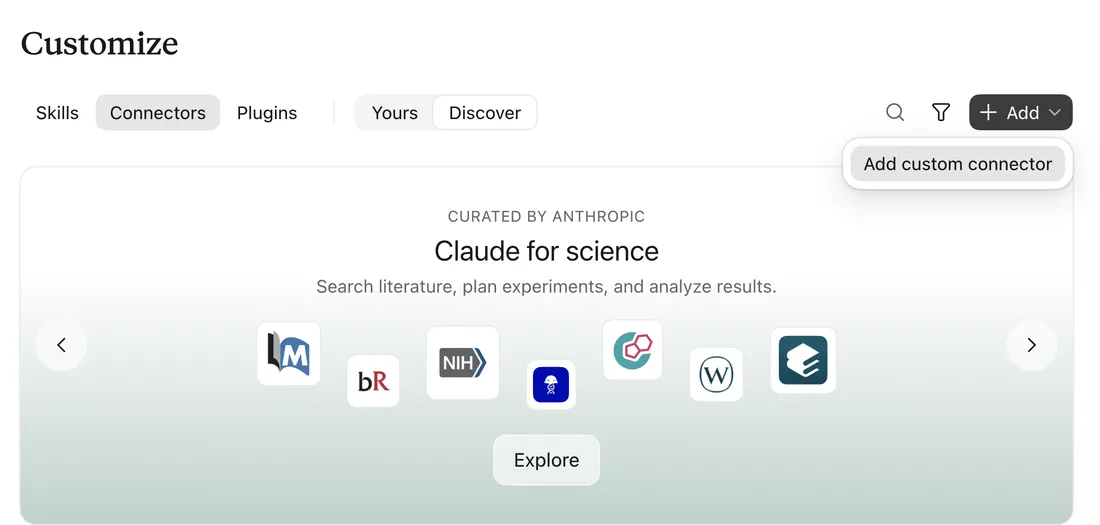
In Claude on the web or in the desktop app, go to Customize, then Connectors. Choose + Add, then Add custom connector.
02
Name it Potniq and enter this URL. Choose Continue.
https://api.potniq.com/mcp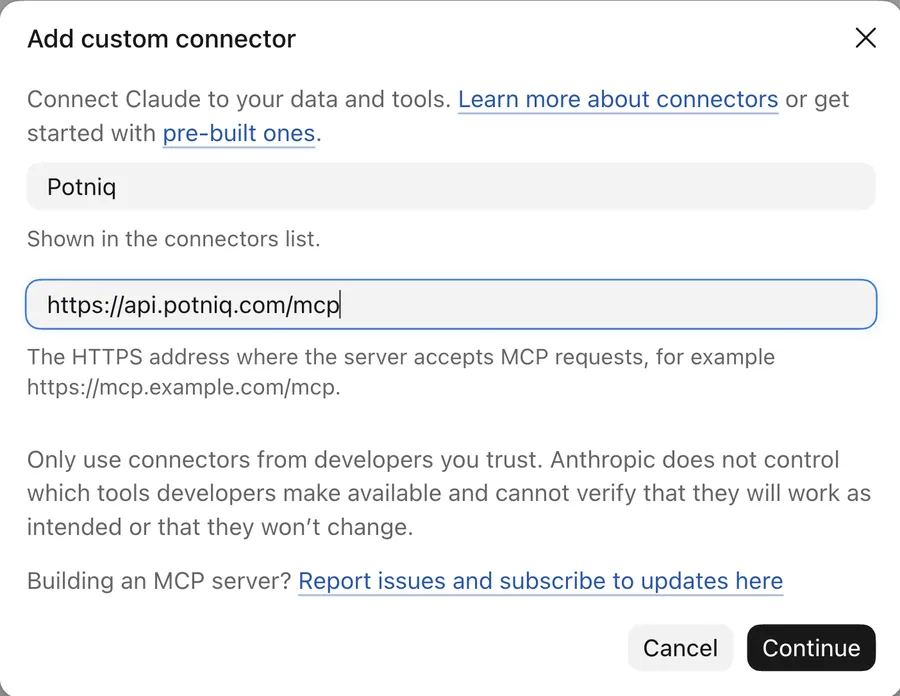
03
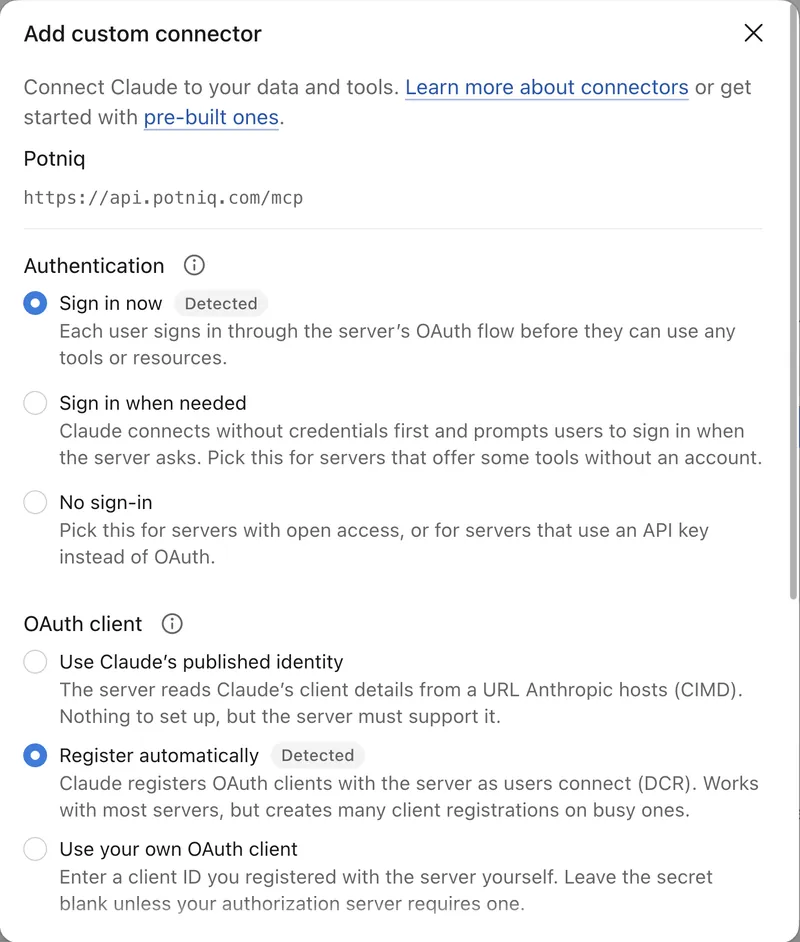
Check the authentication settings Claude found and choose Continue.
04
Under Authentication, choose Sign in now. Under OAuth client, choose Register automatically. Leave Request headers empty and choose Add.
05
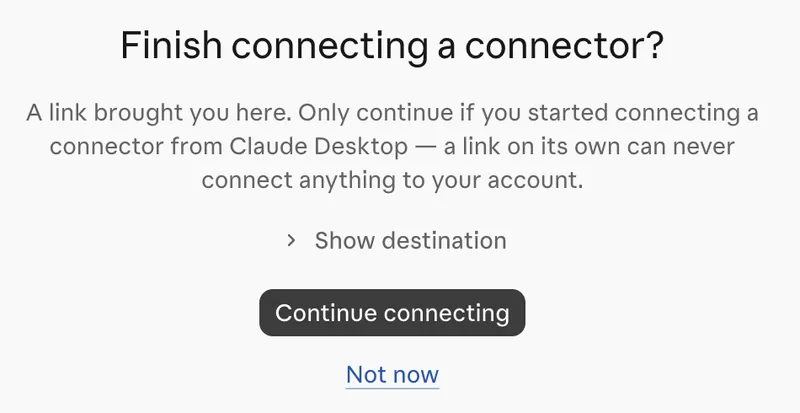
Claude may show a page called "Finish connecting a connector?" because the link came from Claude itself. Choose Continue connecting.
06
Potniq opens in your browser. Sign in, or create an account and confirm your email in the same browser. Then choose Allow, which lets your agent read and save trips.
07
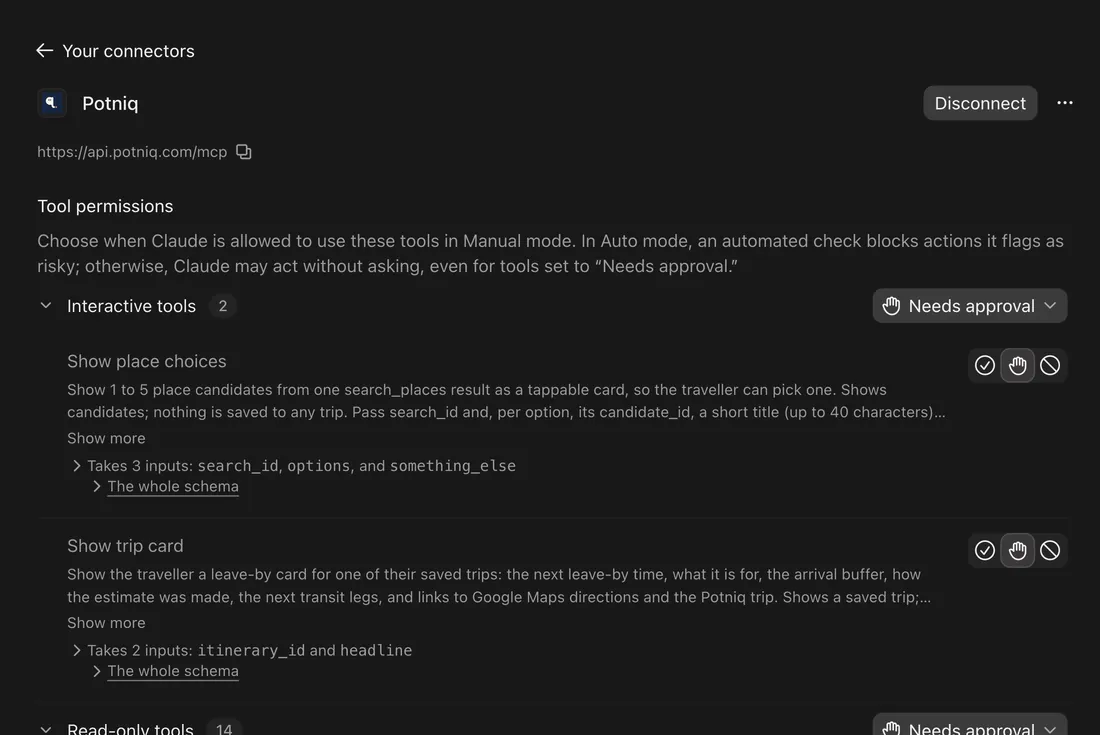
Do this once. It saves a lot of clicking: in Claude, open Customize, then Connectors, choose Potniq and set "Read-only tools" and "Interactive tools" to Always allow. Leave the write tools on Needs approval, so Claude still asks before it saves or changes a trip. Otherwise Claude asks before every Potniq look-up.
08
Back in Claude, start a new chat, switch Potniq on for that chat and paste the prompt below.
Paste this first
Use Potniq. Check the connection and tell me which account it is. Then help me set up my next work trip, and tell me when I need to leave.Your agent saves the bookings it already knows and shows you one summary of the trip at the end.
Team and Enterprise plans
An owner of your Claude organisation adds the connector: Organization settings, Connectors, Add, then Custom, then Web. They use the same name, URL and choices as steps 2 to 4.
Each member then goes to Customize, Connectors, finds Potniq and chooses Connect.
Claude desktop app
Use the same steps in the desktop app. Connectors belong to your Claude account, so one you added on claude.ai also appears in the desktop app.
Claude mobile apps
Add Potniq once on claude.ai in a browser or in the Claude desktop app, using the numbered steps on this page. Anthropic's help pages say connectors run from Anthropic's cloud for every Claude app, so Potniq then works in the Claude mobile app. We have not checked Potniq on a phone.
Limits
- On the Claude Free plan you can add one custom connector.
If it stops
- Potniq is not in the chat's tools
- Switch Potniq on for the chat, or start a new chat and ask again.
- Claude says it could not connect
- Remove the Potniq connector and add it again once, choosing Register automatically. If it fails again, email [email protected] with the message Claude showed. Do not send tokens or the address from your browser bar.
- Potniq says your account is not active yet
- Potniq is opening gradually. An account created without an invite code may join the waitlist, and your agent cannot connect until it is active. We email you when it is. Then connect again once from your agent. Have an invite code? Enter it when you create your account.
- Your agent can read trips but not save them
- Connect again and choose Allow.
- It connected to the wrong Potniq account
- Ask your agent which account it is using. Revoke that connection at
https://potniq.com/connections, then connect again and choose the right account. - You want to stop access
- Revoke the connection at
https://potniq.com/connections. Data your agent already received follows your agent's own policy.